

Overview
Pricing Templates let you set localized installed pricing for specific U.S. states. By default, every Spark uses one installed price for every estimate, regardless of where the homeowner lives. Pricing Templates let you override that default in specific states where local market conditions justify different pricing — labor costs, material costs, competitive landscape, or any other reason. If you operate in multiple states with meaningfully different pricing dynamics, Pricing Templates let your estimates reflect those differences automatically.Pricing Templates are available to Ultimate and Enterprise subscribers. Starter subscribers can see the tab but cannot create or edit templates. Upgrade your subscription to use this feature.
Getting Started
To open the Pricing Templates tab:- From the Dashboard, click Manage My Spark in the left navigation. (See the Set Up Your SPARK guide for an overview of the Manage My Spark page.)
- The Spark Configuration & Management page opens. By default, the Sparks tab is selected.
- Click the Pricing Templates tab.
Understanding the Pricing Templates Page
At the top of the page, you’ll see the Pricing Templates heading along with a brief description, a link to this guide ① for quick reference, and an + Add Pricing Template button ②.Summary cards
Below the header are three summary cards:- Pricing Templates For — Shows which Spark these templates apply to. If you have more than one Spark, use the dropdown to switch between them. Pricing Templates are Spark-specific — each Spark has its own set of templates. (This works similarly to Lead Source Tracking, where each Spark has its own sources.)
- Active Template Limit ③ — Displays how many active templates you’re currently using out of the 10 active template limit. Default Pricing counts toward this limit. The progress bar gives a visual indicator of how close you are to the cap.
- Last Template Added ④ — Shows the most recently added active template. When you first start, this will show Default Pricing.
The Active Pricing Templates table
The main table lists all active templates for the selected Spark with these columns:- Name — The template name.
- Template # — The system-assigned identifier (PT-01, PT-02, etc.).
- Installed Price — The price used for estimate calculations.
- States Covered — The state or states assigned to the template.
- Status — Currently active or archived.
- Actions — Menu of available actions (Edit, Archive, etc.).
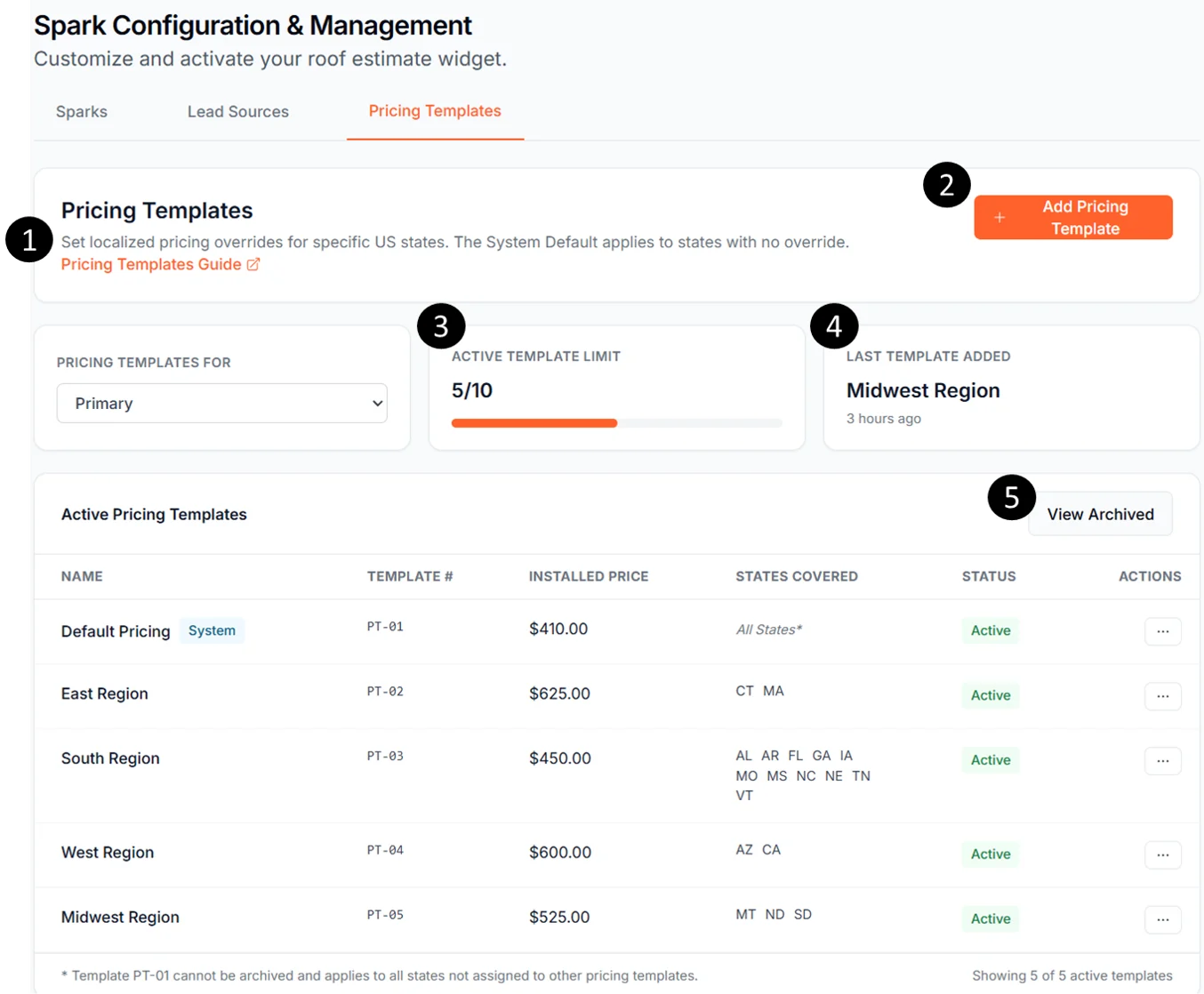
Default Pricing
Every Spark starts with a special template called Default Pricing. It’s the catch-all template that applies to every state not assigned to another template. Default Pricing:- Is automatically created when your Spark is set up (see Set Up Your SPARK for the full configuration flow).
- Is assigned Template # PT-01.
- Applies to all states not assigned to another template.
- Cannot be renamed.
- Cannot be archived.
- Cannot have states manually added or removed (it implicitly covers all unassigned states).
- Can have its Installed Price edited.
Default Pricing is shown with a “System” badge to indicate it’s a system-managed template.
When a Spark is first created
If you’ve just created a new Spark, you may briefly see a notice at the top of the Pricing Templates tab: “Syncing pricing templates. Edits temporarily disabled. Refresh in a moment.” This is normal — your Spark is finalizing its setup. Refresh the page after a few seconds and the notice will clear.Creating and Editing Templates
Creating a new template
To create a localized pricing template:- Click + Add Pricing Template.
- Enter a descriptive name (for example: Florida Pricing or Southeast Region).
- Enter the Installed Price for that template.
- Select one or more U.S. states where this pricing should apply.
- Click Save.
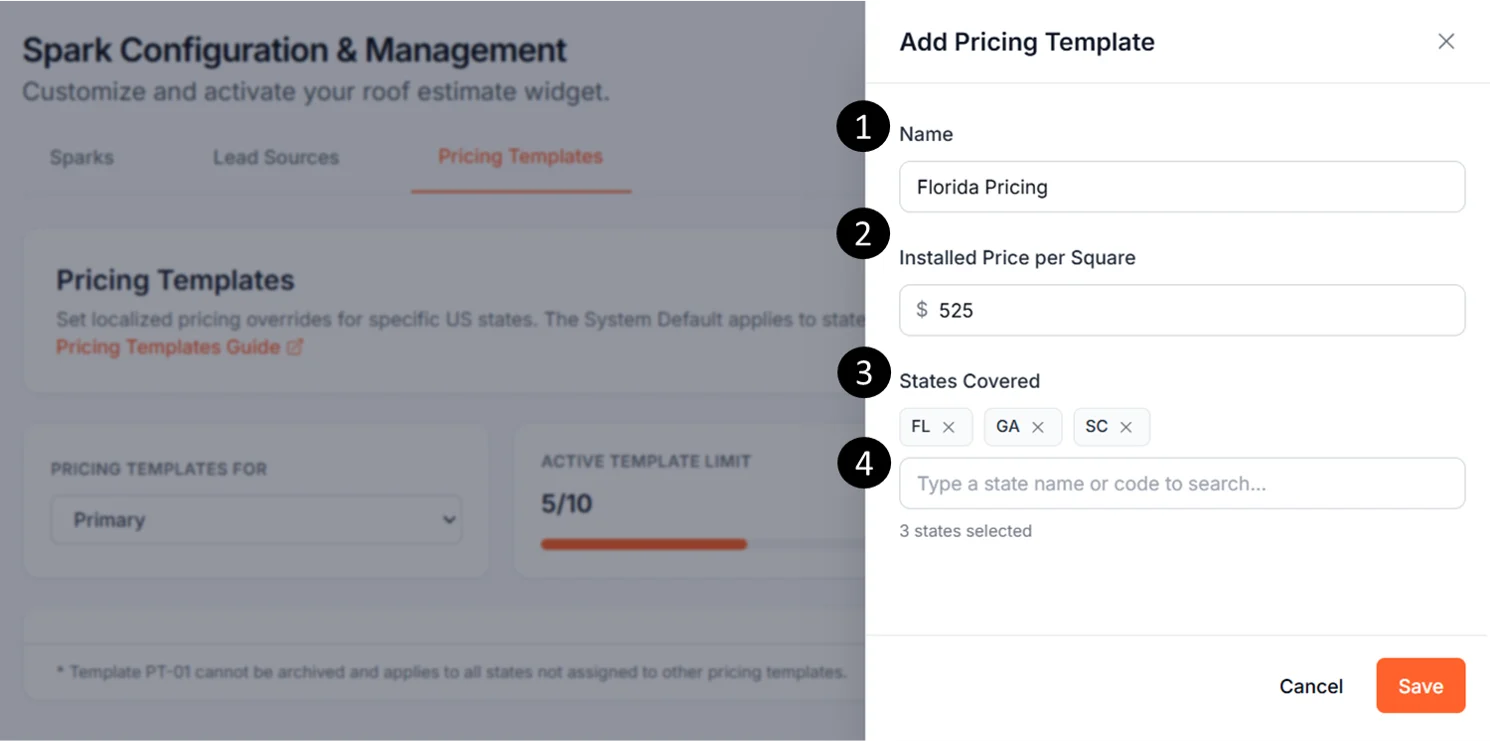
State selection rules
Each state can only be assigned to one pricing template per Spark. Selected states appear as removable pills in the slide-over — click the × on any pill to remove that state from the template.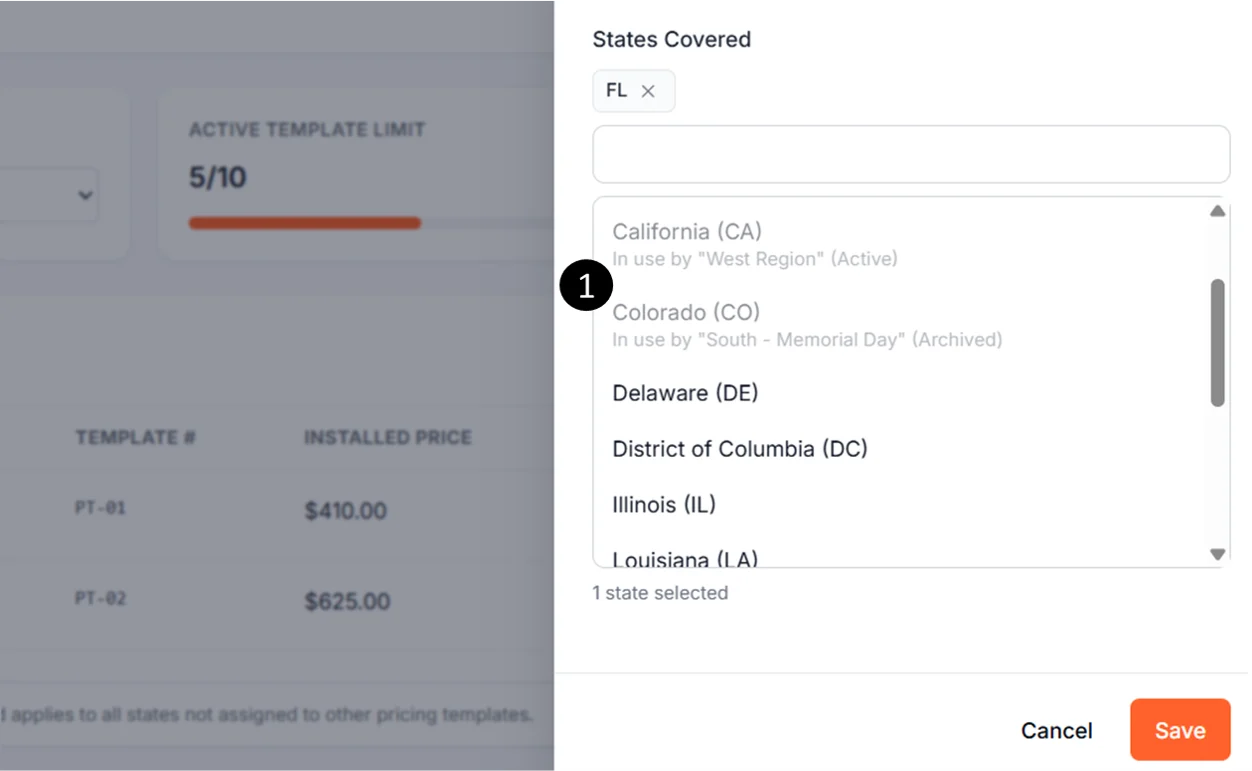
Template name rules
Each template name must be unique within a Spark. Archiving a template does not free up its name — to reuse a name from an archived template, first edit the archived template and change its name. If you try to save a template with a duplicate name, you’ll see a message like “A template with this name already exists on this Spark.” Just choose a different name or rename the existing template first.Editing templates
To edit an existing template, click the ellipsis (...) in the Actions column and choose Edit.
For Default Pricing, you can only edit the Installed Price. The name and state coverage are managed by the system.
For your own templates, you can edit:
- Template name
- Installed price
- Assigned states
Archiving and Restoring
Archiving a template
To stop using a localized pricing template, click the ellipsis in the Actions column and choose Archive. There’s no confirmation step — archiving is one click and reversible. When you archive a template:- It no longer affects live estimate pricing. States it covered will be priced using Default Pricing.
- It retains its assigned states until you remove them. The states remain reserved by the archived template.
- It does not count toward the 10 active template limit.
- It can still be edited, restored, or used to free up state assignments.
Freeing states from an archived template
If you want to fully release a state for use by a different template, archive isn’t enough — you need to also remove the state from the archived template. The flow:- Switch to the archived view by clicking View Archived.
- Open the archived template via the Actions menu.
- Remove the state pills you want to release (click the × on each).
- Click Save.
Restoring an archived template
When viewing archived templates, you can restore a template back to active status:- Click the ellipsis (
...) in the Actions column for the template you want to restore. - Click Restore ②.
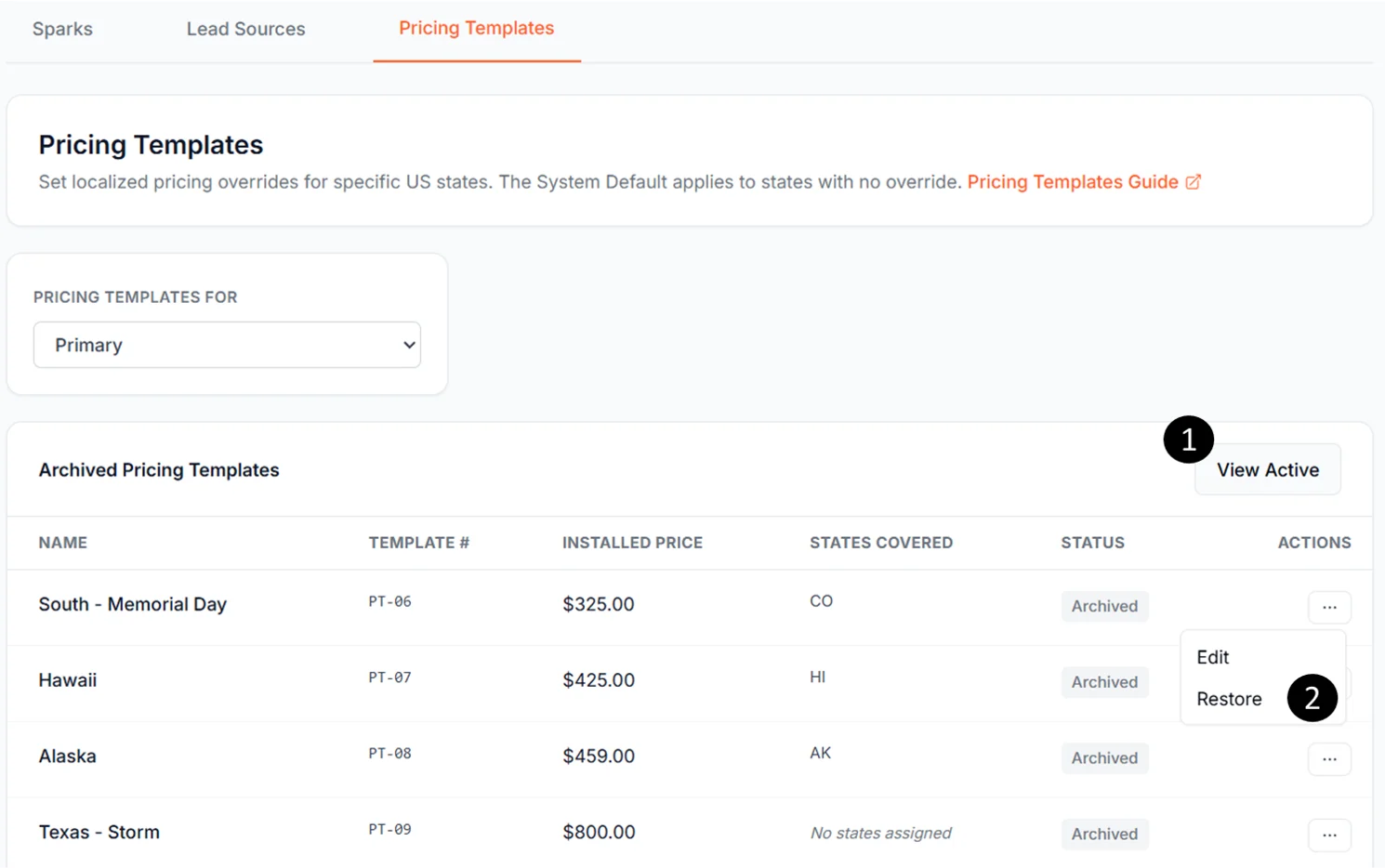
- Cap rule: If you already have 10 active templates, you’ll need to archive one first. The Restore action will be disabled with a tooltip: “You’ve reached the 10-template limit. Archive a template to restore another.”
- State rule: An archived template with no assigned states (a “ghost”) cannot be restored. The Restore action will be disabled with a tooltip: “Add at least one state before activating.” Add at least one state to the template via Edit, then restore it.
Archived view
While in the archived view, the page title changes to Archived Pricing Templates and the button toggles to View Active. Click View Active to return to the main view.A Practical Example
A roofing contractor operates in three states: Florida, Georgia, and Tennessee. Their Default Pricing installed price is $475.00. In Florida, labor and material costs are higher, so they create a localized template:
After saving:
- Florida estimates use the Florida Pricing template at $525.00.
- Georgia and Tennessee estimates continue using Default Pricing at $475.00.