Your SPARK is your AI-powered Roof Estimate Widget — the tool that captures high-intent leads from your website, QR codes, and marketing materials. Manage all your widgets from the Manage My Spark page, then complete the four-tab configuration wizard for each widget to bring it live. This guide walks you through every step.
From your dashboard, look for the orange beacon on the Manage My SPARK button in the left sidebar. That beacon is your signal that your SPARK has not yet been configured. Click it to open the Manage My Spark page and get started.

Your Sparks Tab

When you click Manage My SPARK from your dashboard sidebar, you’ll land on the Manage My Spark page with the Sparks tab active. This is your home base for managing all your widgets. Manage Spark — Sparks tab with numbered annotations The Sparks tab provides:
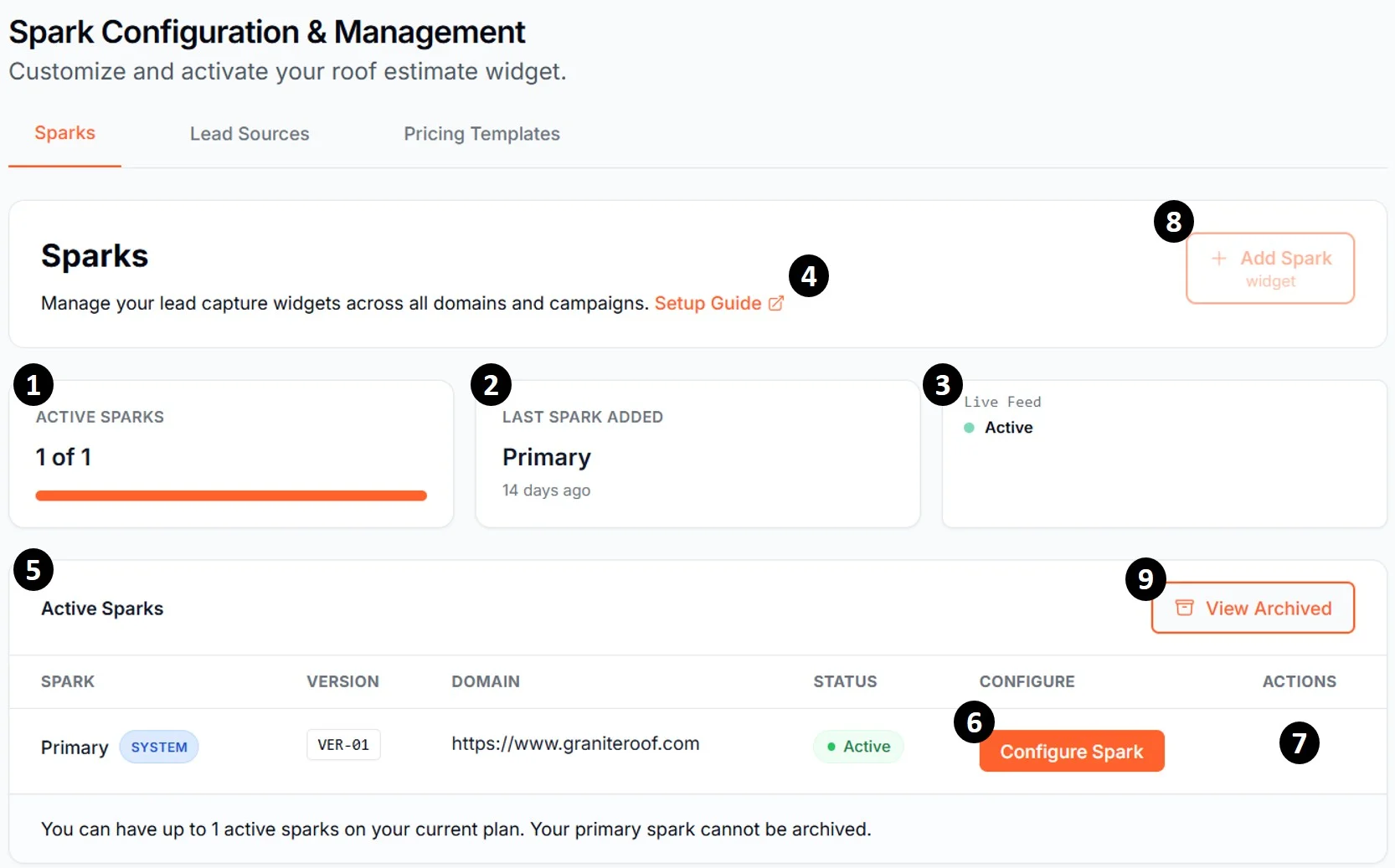
  1. Active Sparks card — shows how many widgets you have configured and your tier limit (e.g., “1 of 3”)
  2. Last Spark Added card — shows when you most recently added a widget
  3. Live Feed card — real-time status indicator showing whether your widgets are live and capturing leads
  4. Setup Guide link — opens this guide in a new tab
  5. Active Sparks table — lists each configured widget with its name, version, domain, status, and actions
  6. Configure Spark button — opens the configuration wizard for that widget (Steps 1-4 below)
  7. Actions menu (…) — archive a widget (non-Primary widgets only), rename, and other per-widget options
  8. + Add Spark button — create a new widget; available based on your subscription tier
  9. View Archived button — switch between active and archived widgets

Subscription Tier and Widget Limits

The number of widgets you can have active depends on your subscription — up to 5 widgets depending on your tier. If you reach your tier’s active widget limit, the + Add Spark button shows an upgrade tooltip. You can archive a non-primary widget to free up a slot, or upgrade your plan.

When You Click Configure Spark

Click Configure Spark on any widget row to open the four-tab configuration wizard:
  • Branding — your company info, logo, colors, and widget title
  • Pricing — your base price, estimate range, and optional advanced adjustments
  • Website Button — design the button or banner that opens your SPARK
  • Publish — enable your widget, retrieve your install script, and get your QR codes
The rest of this guide walks you through each tab.

Before You Begin

When you click + Add Spark widget to create a new Spark, or click Configure Spark on your Primary widget for the first time, you’ll see the Get Ready to Create Your SPARK checklist modal. Have the following ready before you proceed — you’ll need all four to complete setup. Get Ready to Create Your SPARK checklist modal
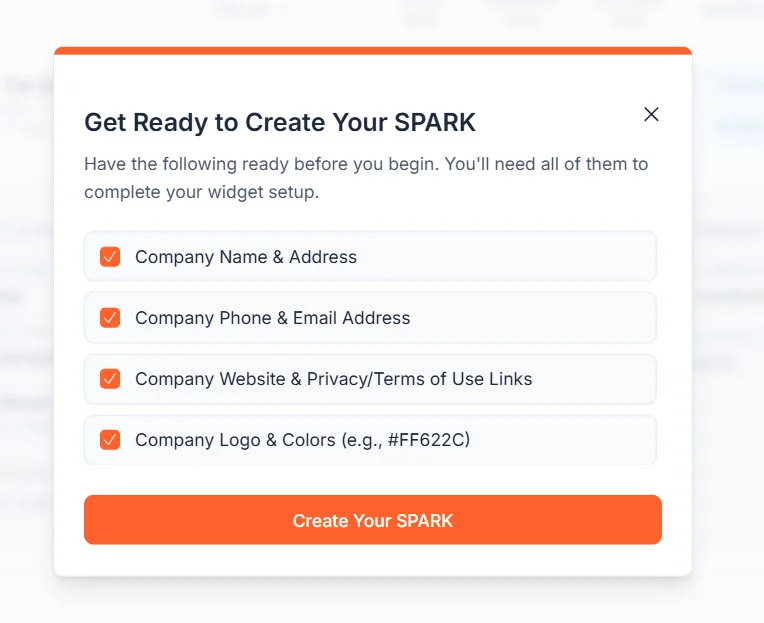
  • Company Name & Address
  • Company Phone & Email Address
  • Company Website & Privacy/Terms of Use Links
  • Company Logo & Brand Colors (HEX format, e.g., #FF622C)
Once all four items are checked, the Create Your SPARK button activates. Click it to open the configuration wizard.

Step 1 — Branding

The Branding tab controls how your company appears to homeowners throughout the widget experience. Work through each section from top to bottom, then click Submit at the bottom of the tab when you’re done.

Company Info

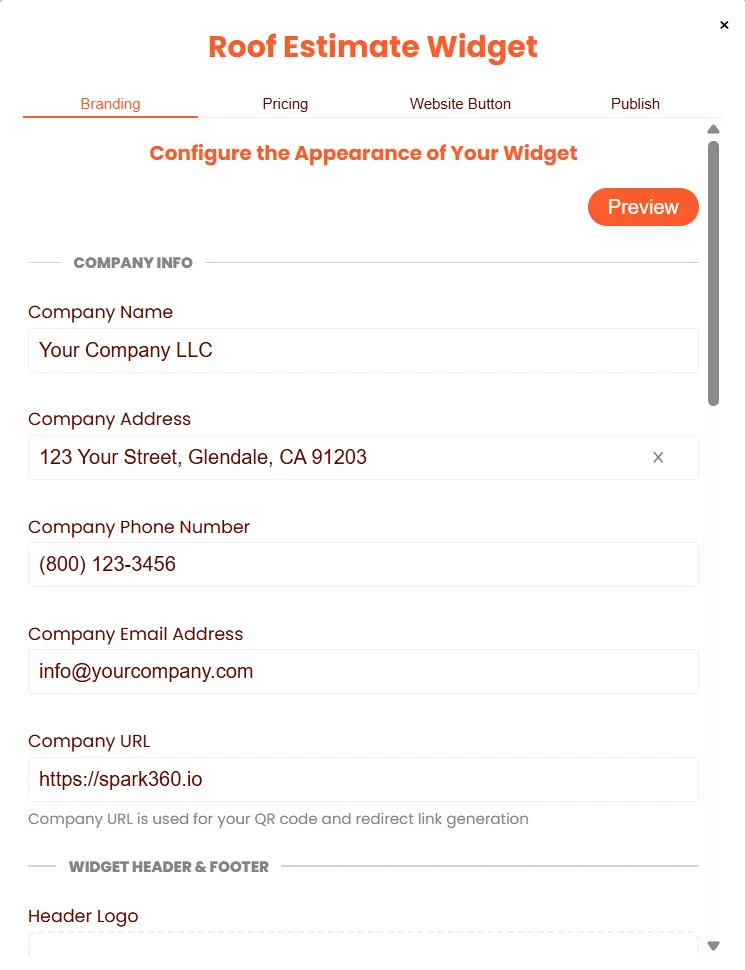
Enter your company’s contact details. This information is displayed to homeowners inside the widget, so use the phone number and email address your team monitors for customer inquiries. Branding tab — Company Info fields
FieldWhat to enter
Company NameYour business name as you want it displayed
Company AddressYour primary business address
Company Phone NumberThe number homeowners should use to reach you
Company Email AddressA monitored customer-facing email address
Company URLYour primary website (e.g., https://yourcompany.com)
Your Company URL is used to generate your QR code and redirect links in the Publish tab.

Logo Upload

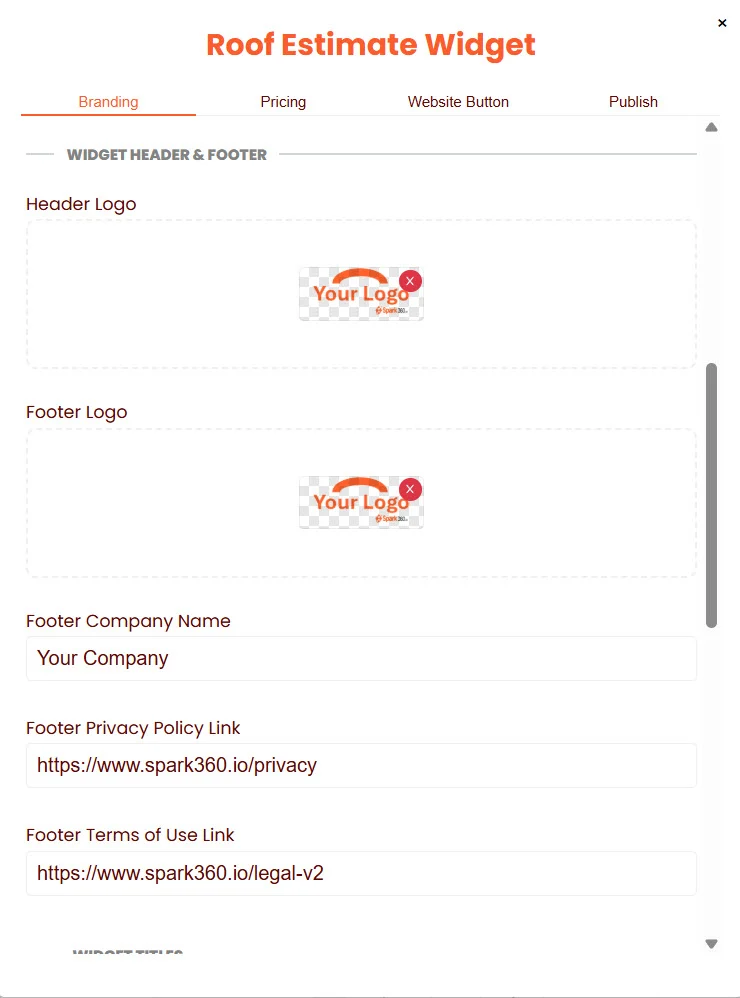
Scroll down to the Widget Header & Footer section. Upload your company logo for both the header and footer of the widget. Branding tab — Logo upload and footer fields You can use the same logo in both positions, or use an alternative logo or icon for the footer. Drag and drop a file into each upload area, or click to browse. Logo tips:
  • PNG or JPG (recommended)
  • Horizontal layout preferred (e.g., 300 × 150 px)
  • Max file size: 1 MB
  • Avoid tall or vertical logos
  • Use a transparent background if possible
  • Make sure your logo is legible on both light and dark backgrounds
Footer Company Name Enter the company name to display in the footer of the widget, to the right of your footer logo. This field gives you flexibility — for example, you may display your brand name (Granite Roofing) in the header while showing your full legal name (Granite Roofing Systems, LLC) in the footer.
Enter the URLs for your company’s Privacy Policy and Terms of Use pages. These links appear in the widget footer and are required for homeowners to review before submitting their information.
FieldWhat to enter
Footer Privacy Policy LinkFull URL to your privacy policy page
Footer Terms of Use LinkFull URL to your terms of use page
Links must use standard URL format beginning with http:// or https://. We recommend opening the relevant page on your website and copying the URL directly from your browser’s address bar.
Don’t have a privacy policy or terms of use page yet? You may use the Spark360 fallback links in the meantime:

Widget Title & Colors

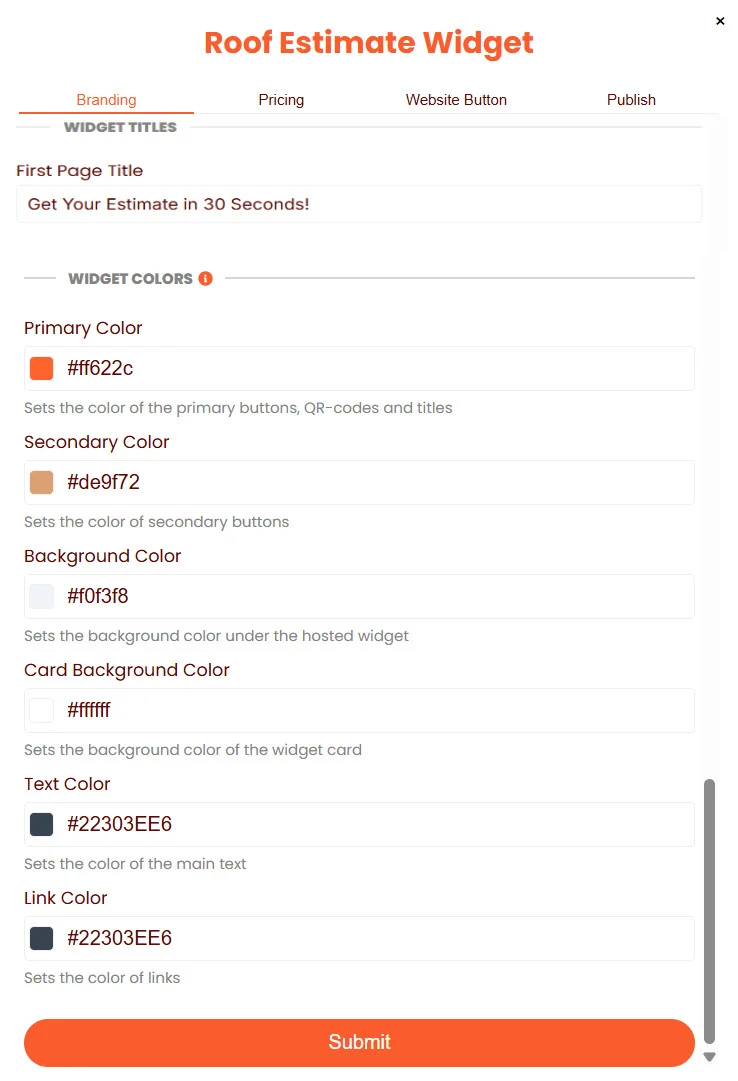
Branding tab — Widget title and color fields Widget Title The First Page Title is the headline homeowners see when they first open your SPARK. Keep it action-oriented and concise. You can change it at any time. Examples:
  • Get Your Estimate in 30 Seconds!
  • Get an Instant Roof Estimate
  • Free Roof Estimate — Try It Now
Widget Colors Enter HEX color codes to match your brand. Each field controls a specific area of the widget.
FieldControls
Primary ColorPrimary buttons, QR codes, and titles
Secondary ColorSecondary buttons
Background ColorBackground behind the hosted widget page
Card Background ColorBackground of the widget card itself
Text ColorMain body text
Link ColorClickable links
Clicking any color field opens a color palette so you can select colors visually rather than entering codes manually.
Not sure what HEX codes are or how to find yours? HEX codes are six-character color codes (e.g., #FF622C) that identify exact colors. Your graphic designer or brand guide will often have these on file. If not, these free tools make it easy:
  • Image Color Picker — upload your logo and click any color to instantly get its HEX code. This is the easiest option for most users.
  • RGB to HEX Converter — if your designer gave you RGB values, use this to convert them to HEX format.
Click the Preview button in the upper right corner of the Branding tab at any time to see how your logo, title, and colors appear together before you submit. It’s worth checking before moving on.
When you’re satisfied, click Submit at the bottom of the Branding tab. An Accepted confirmation will appear and the Pricing tab will open automatically.

Step 2 — Pricing

The Pricing tab configures how your SPARK calculates roof replacement estimates for homeowners. Work through each section, then click Submit at the bottom when you’re done.

Base Price Configuration

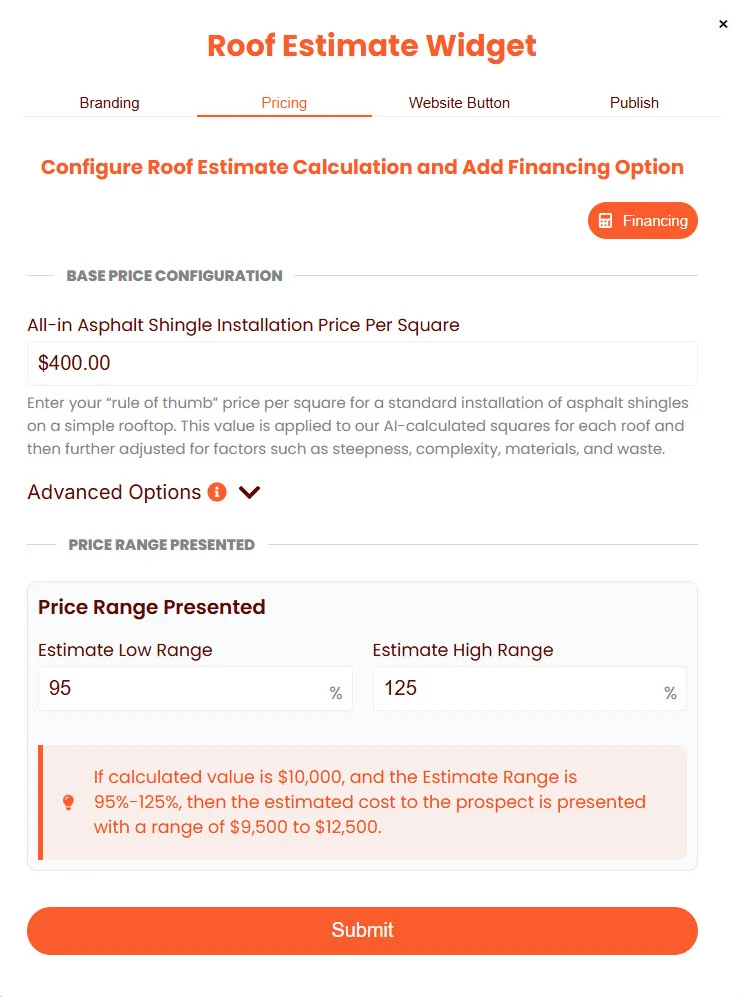
Pricing tab — Base price and estimate range Enter your All-in Asphalt Shingle Installation Price Per Square. This is your “rule of thumb” price per square for a standard asphalt shingle installation on a straightforward rooftop. Spark360 applies this base value to the AI-calculated square footage for each roof, then automatically adjusts the estimate for factors such as steepness, complexity, material type, and waste. Price Range Presented By default, Spark360 presents homeowners with an estimate range rather than a single number. The default range is 95% to 125% of the calculated value. For example: if the calculated value is 10,000,thenthehomeownersestimaterangewouldbe10,000, then the homeowner's estimate range would be 9,500 to $12,500. You can adjust these low and high percentages to reflect your preferred quoting approach.

Advanced Options (Optional)

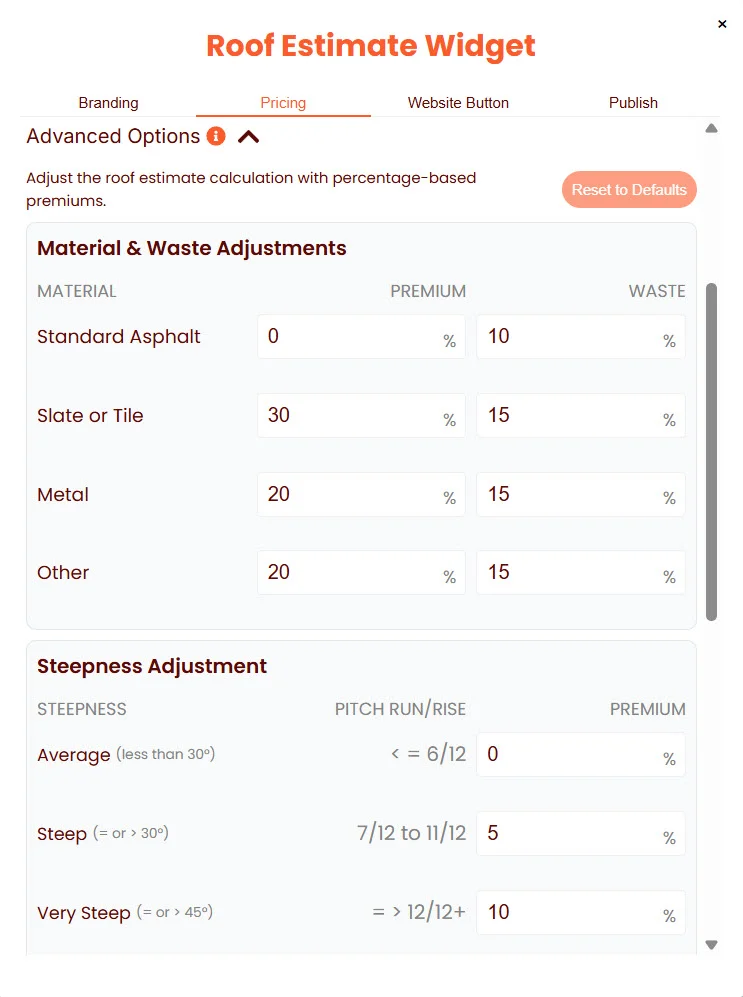
Pricing tab — Advanced options expanded Click Advanced Options to expand additional pricing controls. These allow you to fine-tune the estimate calculation using percentage-based premiums across three categories:
  • Material & Waste Adjustments — Set a premium and waste factor for each material type (Standard Asphalt, Slate or Tile, Metal, and Other). The premium is the additional cost percentage applied over your base price for that material; waste accounts for the extra material needed during installation.
  • Steepness Adjustment — Apply a premium based on roof pitch. Steeper roofs require more labor and carry higher risk, so you can set graduated premiums for Average, Steep, and Very Steep pitch ranges.
  • Complexity Adjustment — Apply a premium for roof complexity (scroll down within Advanced Options to view this section).
All values are entered as percentages applied to your base price. A Reset to Defaults button is available if you want to return to Spark360’s standard values.
If you’re just getting started, the default values work well for most contractors. You can always return to Advanced Options later to refine your pricing as you learn how estimates are performing.

Financing — Payments As Low As (Optional)
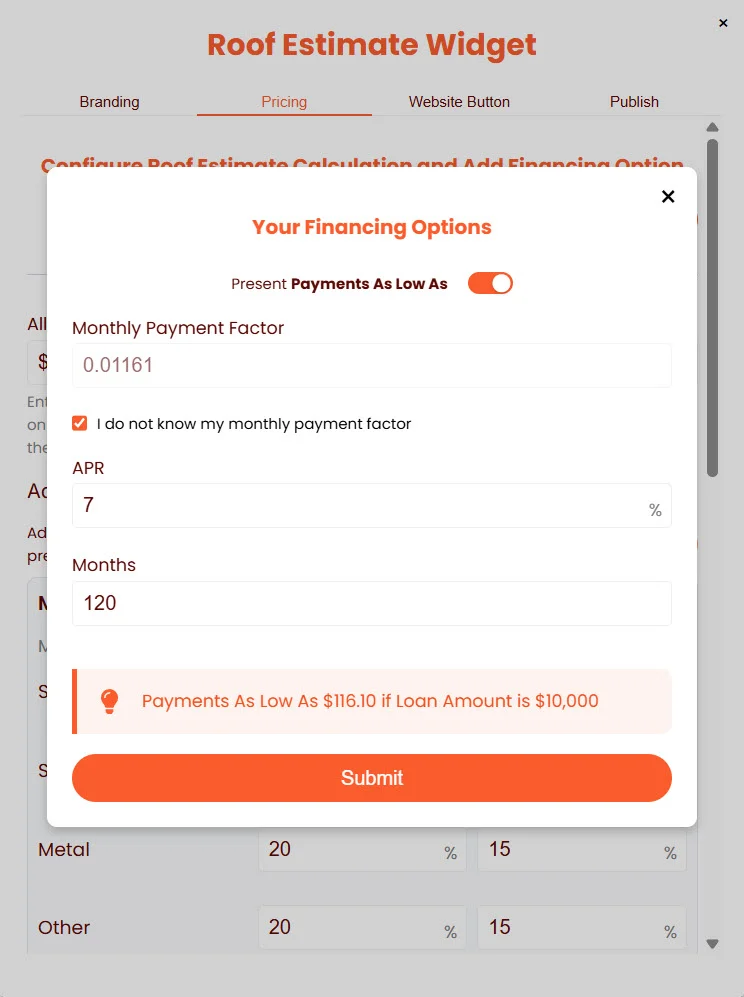
Pricing tab — Financing popup Enable this feature to display a monthly payment figure alongside the estimate — for example, “Payments as low as $116/mo.” This can improve conversion by making the project feel more accessible to homeowners.
Only enable this feature if you currently offer financing options to customers. This figure is for illustration purposes in the widget — your actual financing terms are handled outside of Spark360.
To set up financing:
1

Open the Financing popup

Click the Financing button in the upper right corner of the Pricing tab.
2

Enable the toggle

Toggle on Present Payments As Low As.
3

Enter your financing terms

Enter either:
  • Your Monthly Payment Factor (provided by your lender), or
  • Check I do not know my monthly payment factor and enter your APR (%) and loan term in Months instead. Spark360 will calculate the factor for you.
For example: a 7% APR over 120 months produces a monthly payment factor of approximately 0.01161 — meaning a 10,000loanwouldbepresentedasapaymentaslowas10,000 loan would be presented as a payment as low as 116.10/month.
4

Submit twice

Click Submit in the Financing popup first, then click Submit again at the bottom of the Pricing tab. Both submits are required to save your financing settings.
You must click Submit in the Financing popup and click Submit at the bottom of the Pricing tab. Closing the popup without submitting, or submitting the popup but not the Pricing tab, will not save your financing configuration.

Step 3 — Website Button

The Website Button tab lets you design and configure a button or banner that appears on your website to invite visitors to get a free estimate. This element is automatically generated — no design work required.

Design Your Button or Banner

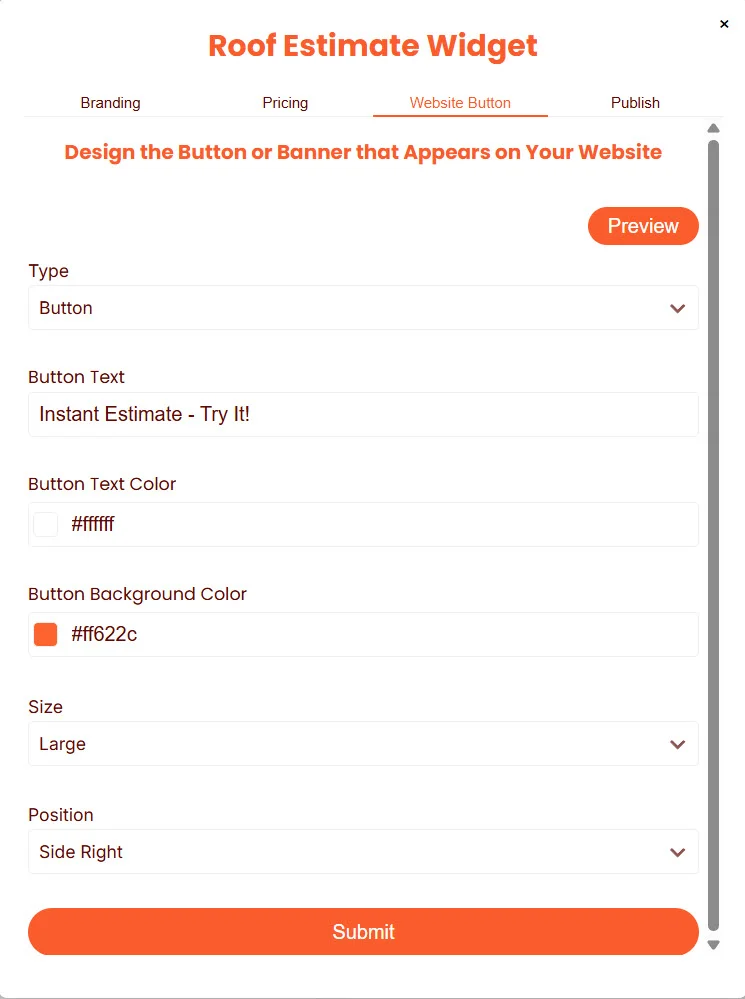
Website Button tab — Button configuration Use the following fields to configure your button or banner:
FieldDescription
TypeChoose Button, Banner, or Custom
Button TextThe text that appears on the element
Button Text ColorText color (HEX code)
Button Background ColorBackground color of the button or banner (HEX code)
SizeSmall, Medium, or Large
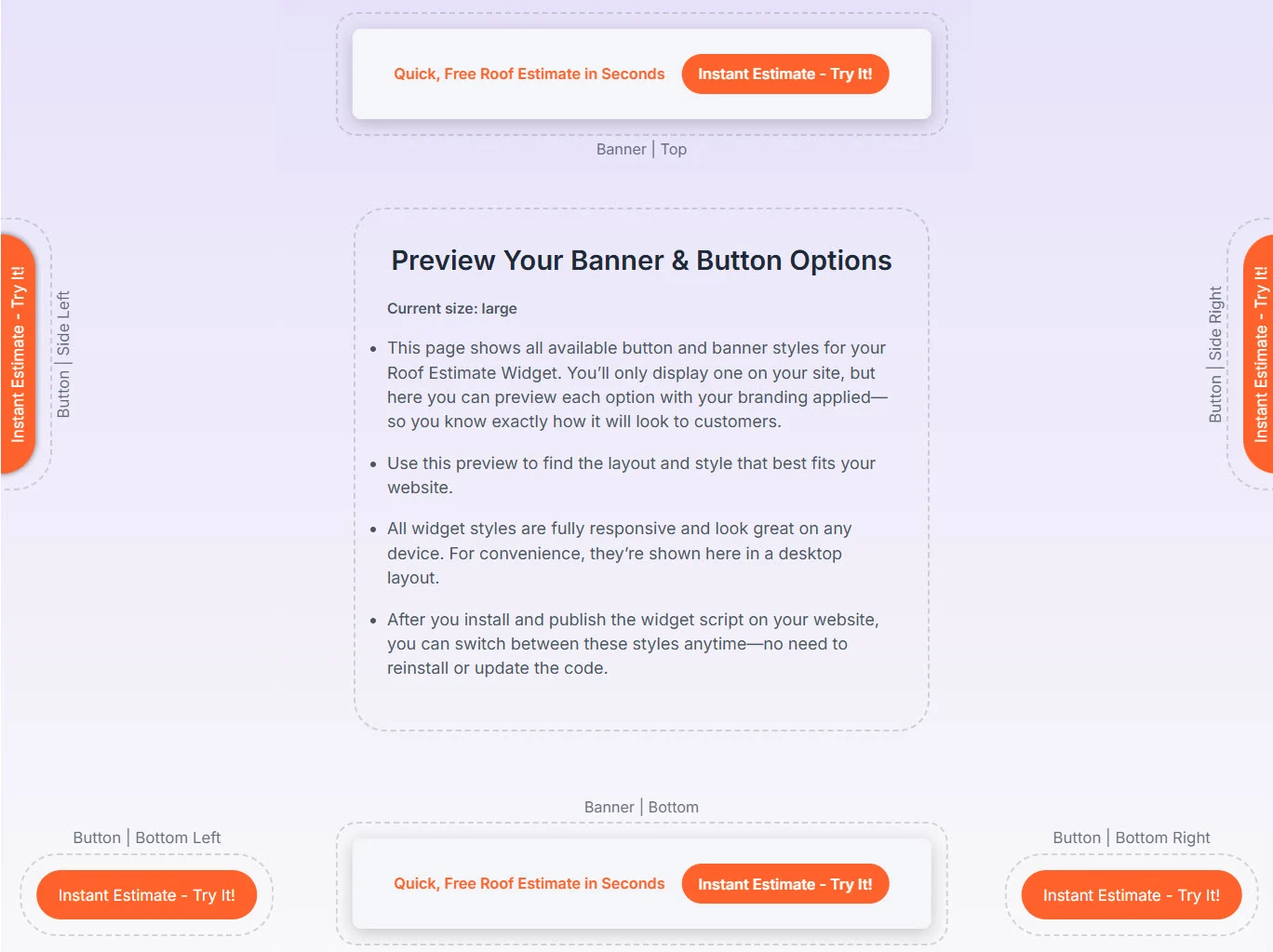
PositionWhere the element appears on your website (e.g., Side Right, Bottom Left, Top)
Keep button text short and action-oriented. Options like “Instant Estimate — Try It!” or “Free Roof Estimate” perform well. Long text can overflow on smaller screens.

Preview Your Options

Website Button tab — Preview showing all placement options Click Preview to open a full-screen view that displays all available button and banner placements at once — with your branding applied. This lets you see exactly how each option will look to visitors before you commit to a position. All widget button and banner styles are fully responsive and work on any device. The preview displays them in a desktop layout for convenience.
After your widget script is installed on your website, you can switch between button and banner styles at any time — no need to reinstall or update your script. Your configuration change takes effect immediately.
Using a Custom element If you prefer to use your own button design, or want to add multiple trigger points on your website, select Custom from the Type dropdown. See the install instructions in the Publish tab for the code needed to wire a custom element to your SPARK. When you’re ready, click Submit at the bottom of the Website Button tab.

Step 4 — Publish

The Publish tab is the final step. This is where you activate your SPARK, retrieve your install script, and access your QR codes and redirect links.

Enable Your Widget

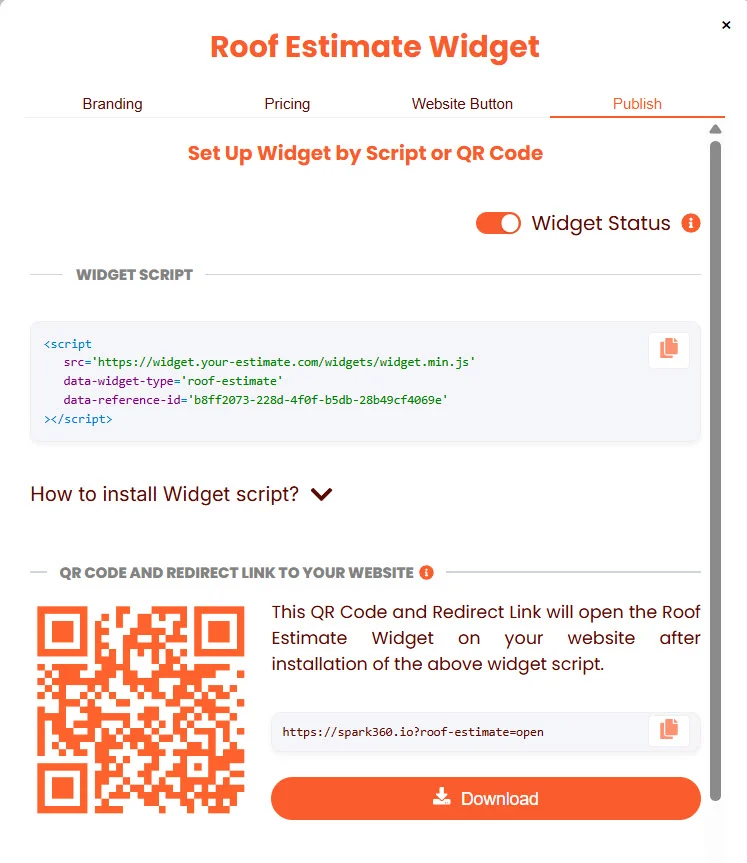
Publish tab — Widget Status toggle and script Use the Widget Status toggle to control whether your SPARK is live.
StatusMeaning
Enabled (Active)Your SPARK is live and capturing leads in real time
Paused (Inactive)Your SPARK is offline — all links and buttons will not activate the widget
Toggle your widget on to go live. You can return to this toggle at any time to pause or re-enable your SPARK without losing any of your configuration.

Install the Widget Script

Your unique widget script is displayed in the Widget Script section. This script is what makes your SPARK appear on your website. Use the one-click copy button to copy the script, then provide it to your website manager or paste it yourself. Where to paste the script: Add the script at the end of the <body> tag, or into the Footer Code section of your website builder (e.g., Webflow, Wix, Tilda, Squarespace). This ensures your page is fully loaded before the SPARK runs. To see step-by-step installation instructions, click the “How to install Widget script?” link directly below the script. This expands a panel with full instructions, including how to wire a custom button or banner element. Publish tab — How to install instructions expanded Wiring a custom element If you selected Custom on the Website Button tab, or want to add additional trigger points beyond the generated button, use one of the following approaches in your website code:
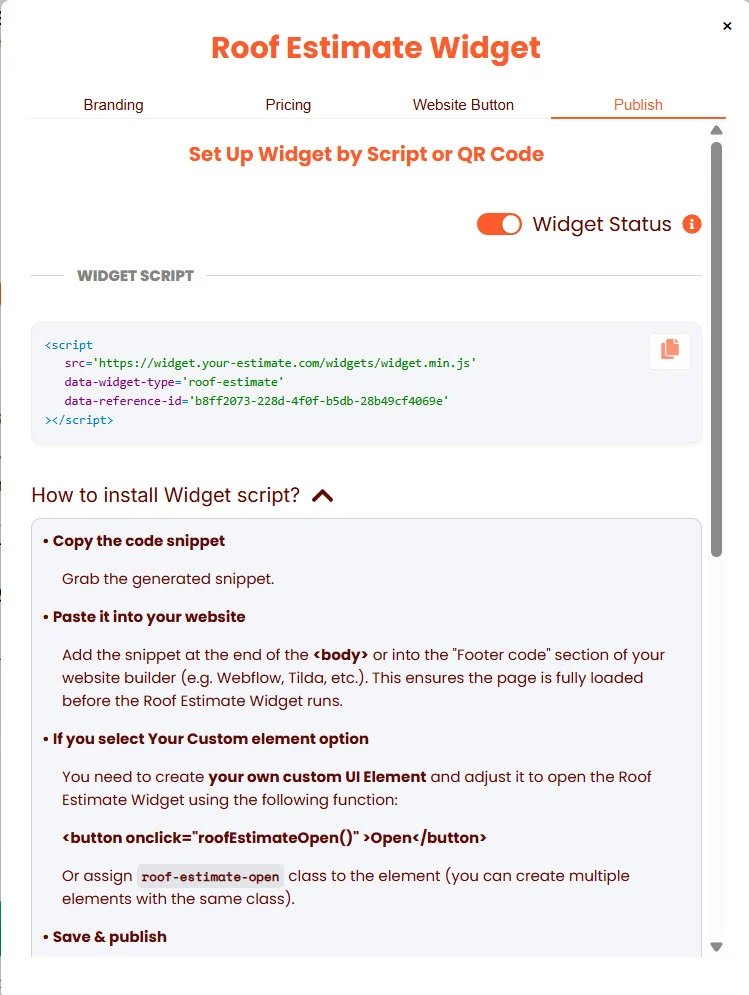
<button onclick="roofEstimateOpen()">Get a Free Estimate</button>
Or assign the roof-estimate-open class to any clickable element:
<a class="roof-estimate-open">Get a Free Estimate</a>
You can apply roof-estimate-open to multiple elements on the same page.
The Publish tab provides two sets of QR codes and redirect links — one for your website, and one hosted by Spark360. Website QR Code & Link This QR code and link open your SPARK directly on your website. They require your widget script to be installed and your site to be published before they will work. Hosted QR Code & Link This QR code and link open a free, Spark360-hosted version of your Roof Estimate Widget — no website installation required. The hosted experience is live the moment your widget is enabled.
The hosted link and QR code are ready to use immediately — share them on social media, in emails, on door hangers, truck wraps, or any print materials. Many contractors use the hosted link as their primary lead capture tool while their website installation is being set up.
Click Download under either QR code to save a high-resolution image file for use in print or digital materials.

What Happens Next

Once your SPARK is enabled, homeowners can interact with your widget and leads will begin appearing in your dashboard in real time. Each qualified lead includes contact information, a roof replacement estimate, lead scores, and AI-generated Sales Hacks to guide your outreach. Ready to make the most of your leads? View the Lead Dashboard Guide →